100% Security
Instant Download 24/7
10+ Years of Service

Need Some Help?

If you need further information about purchasing commercial downloadable software, before or after ordering, please read our Questions and Answers. Please also refer to our Terms of Sale. If you need to remove software, please contact our support team from the Contact Us page.

0 Reviews
$19.95
$59.95
Save 67%

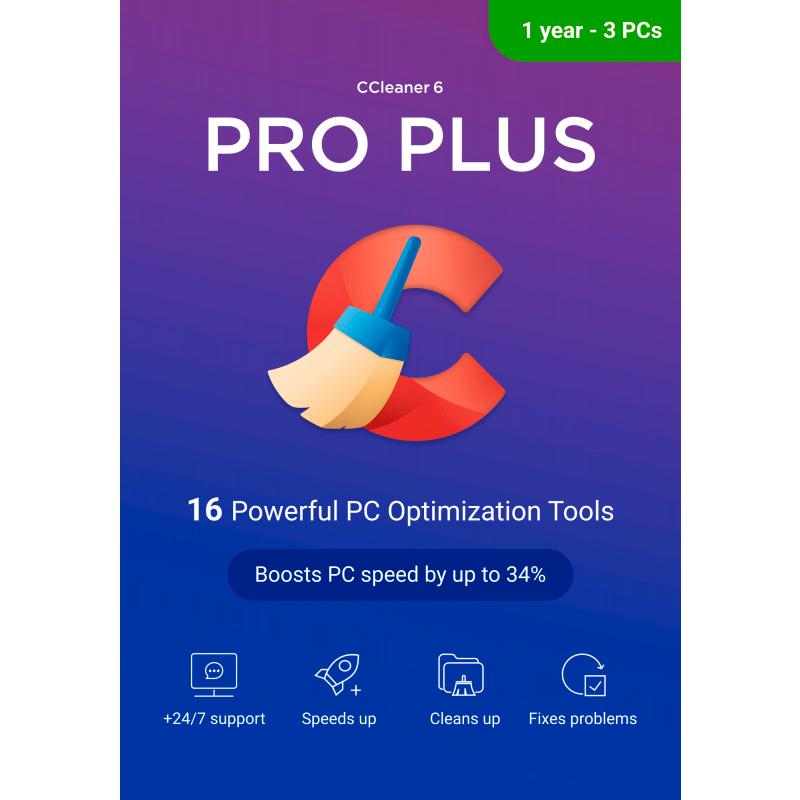
CCleaner 7 Professional Plus [3-D, 1-YR]

includes a 3-D, 1-Year license

Offer Ends

Need Some Help?

If you need further information about purchasing commercial downloadable software, before or after ordering, please read our Questions and Answers. Please also refer to our Terms of Sale. If you need to remove software, please contact our support team from the Contact Us page.

+ login to earn points
Platform
Android
macOS
Windows 10
Windows 11
Windows 7 (32 bit)
Windows 7 (64 bit)
Windows 8
Version
7
Manufacturer
Twitter
Last Updated
30 April 2026
Download Size
5.00 MB

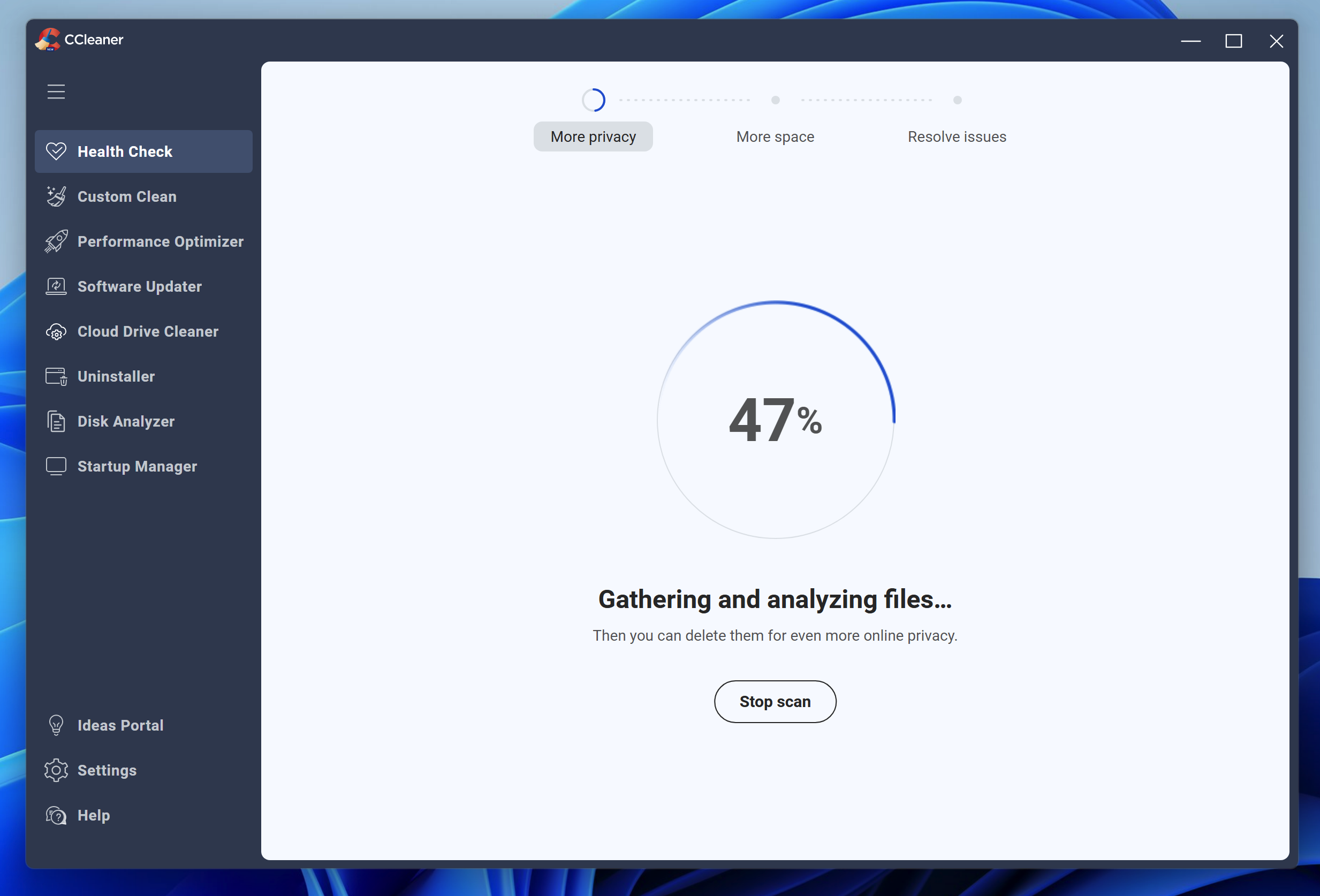
Do you remember how fast your PC or Mac used to run? You’re not imagining things – over time, PCs really do run more slowly as the junk builds. Windows’ own tools do a so-so job of clearing things up, but if you want to be thorough – and restore your PC to close to its original performance levels – you need CCleaner.

CCleaner is a renowned system-cleaning tool that provides everything you need to reclaim lost drive space, remove resource-intensive programs from your computer, and clean up all the junk left behind. Version 7 is the best yet – a sleek new user interface, faster scan performance and improved compatibility are just three highlights.

Although CCleaner offers a free version that gives you access to some of its essential cleaning tools, upgrade to CCleaner Pro Plus, available here, and you’ll unlock the following professional tools in the Windows version:

Cloud Drive Cleaner: it’s not just your hard drive that gets cluttered, so let Cloud Drive Cleaner tackle your unruly Google Drive and Microsoft OneDrive storage too.

Driver Updater: newer drivers don’t just fix bugs, they introduce new features and improve performance too. Driver Updater takes the hassle out of keeping your hardware up to date, and CCleaner Pro scans and installs any available updates for you.

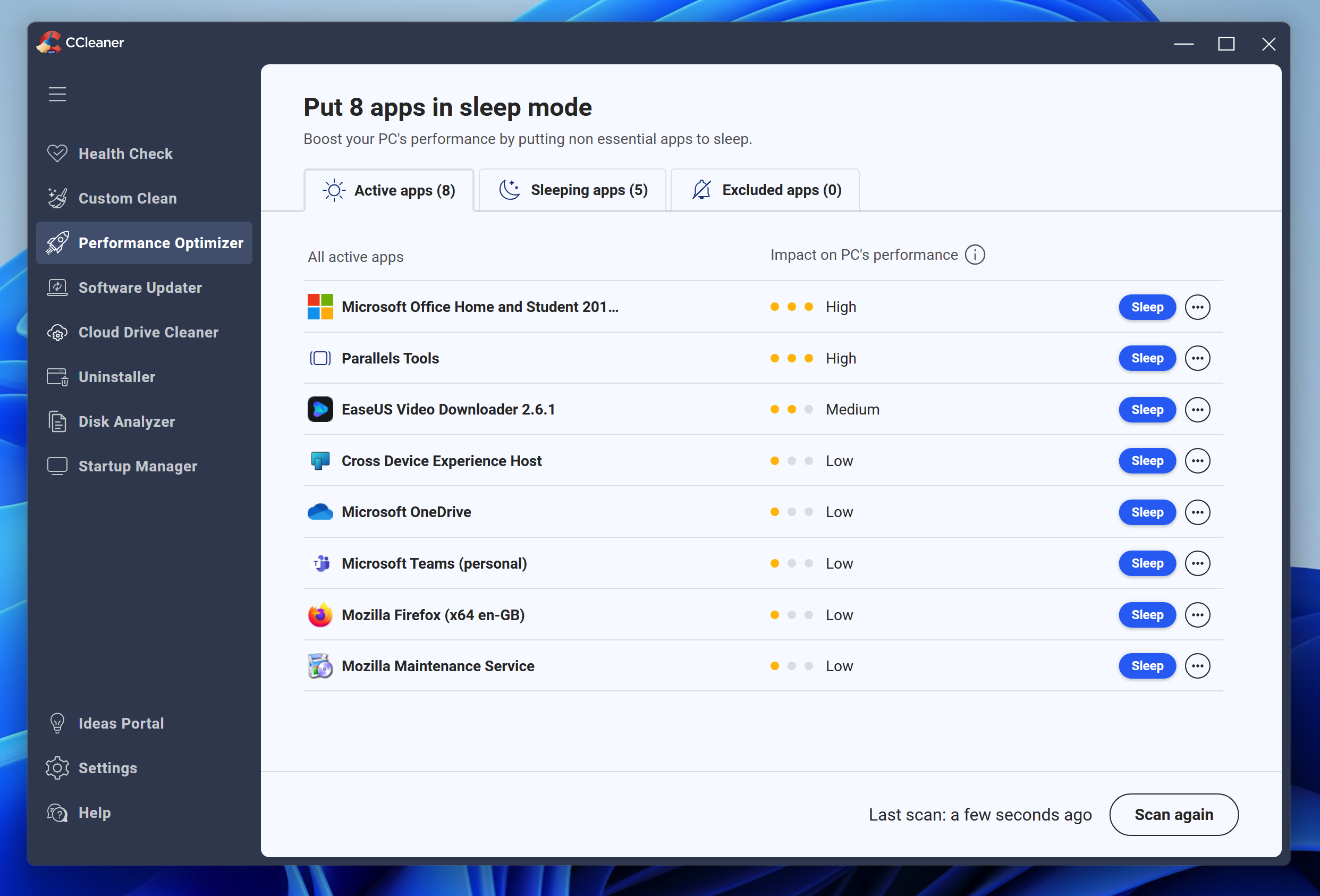
Performance Optimizer: boost your PC’s performance by detecting and closing unused programs that are running in the background.

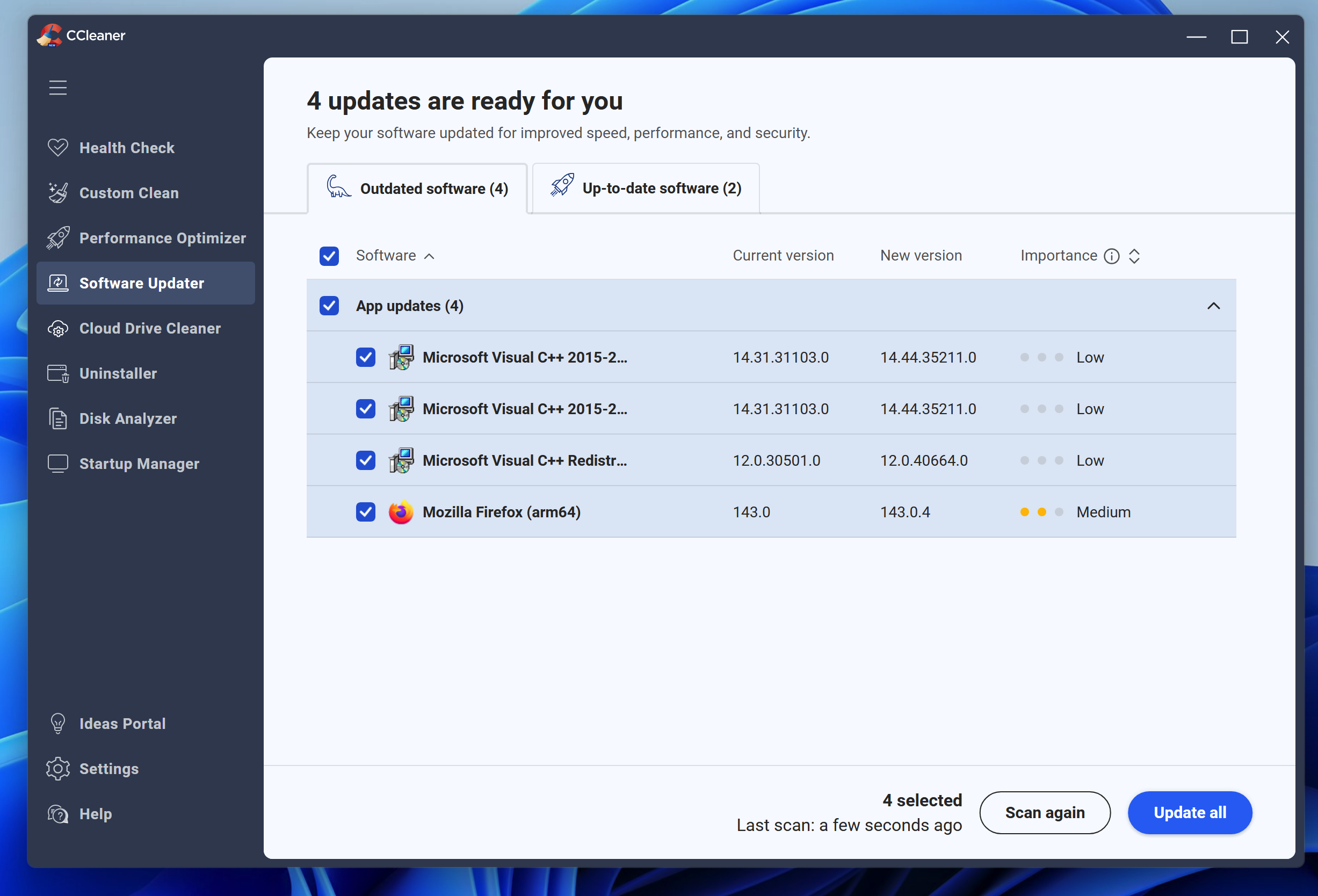
Software Updater: check for updates and keep all your installed software up to date from one convenient place.

Clean junk automatically: remove unwanted junk from your browser history.

Recover lost and deleted files with Recuva Professional. Its advanced file recovery tools include support for virtual drives.

Get detailed system information about your PC with Speccy Professional.

The Mac version of CCleaner Pro adds tools for analysing photos, automatic browser cleaning, importing browser bookmarks, and automatically emptying the trash.

Includes a 3-Device, 1-Year license which covers your PC, Mac or Android device.

Review by Nick Peers.

Performance Issues?

Most system performance issues are often a result of other software clashing with your brand new software. For instance, security software can clash with a background process, such as a system maintenance tool or defragmentation software. Another cause of system slowdown, is a result of two software applications performing a similar task. As an example, Windows includes a firewall switched on as a default. Your new security suite is likely to include a firewall. You only need one firewall running. In this example, try turning off your system firewall.

Uninstalling Your New Software

Occasionally you may need to either temporarily or permanently remove your new software.

On a Windows computer, go to the Control Panel and choose Programs and Features. Locate the program within the list, then click it to highlight it. Finally, click the Uninstall button at the top of the list and follow the instructions to remove the program from your PC.

On an Apple Mac computer, using Finder, locate the Applications folder. Within the Applications folder, find the name of the application you wish to remove. Simply drag the icon to your Trash icon in your dock. Empty the Trash to remove the files from your computer.

Still Having Problems?

If you cannot solve your system performance issues or are struggling to remove your software, we advise contacting the software manufacturer. If you placed an order, see the section in the order which states Support options. Alternatively, go to the Contact Us page to contact store support directly.

Write a review

Find What You Need!
Payment Methods
Trusted Partners
McAfee Bitdefender Auslogics Avast Software Norton Microsoft
100% Security
Instant Download 24/7
10+ Years of Service