There are many reasons why you might need a new Windows 11 license. You might be looking to upgrade from another operating system (say Windows 10, Linux or macOS on an Intel Mac). Perhaps you’re building your own custom-made PC from scratch and need an inexpensive Windows license to run on it. Or maybe you need to set up a virtual machine.
In all these cases, buying a full retail Windows 11 license is both unnecessarily expensive and overkill. A 1-PC license isn’t just significantly cheaper, but it’s also more flexible than you might think. Yes, it can only be installed on one PC, but you can still perform significant hardware upgrades or like-for-like replacements to that PC without invalidating it.
And if you set up a virtual machine – on PC or Mac – it’s possible to transfer that license to a new VM, so long as it runs on the same machine as the original. And speaking of Mac, you can breathe new life into your older Intel-powered Mac by switching to Windows 11 (or installing it alongside macOS) using Boot Camp.
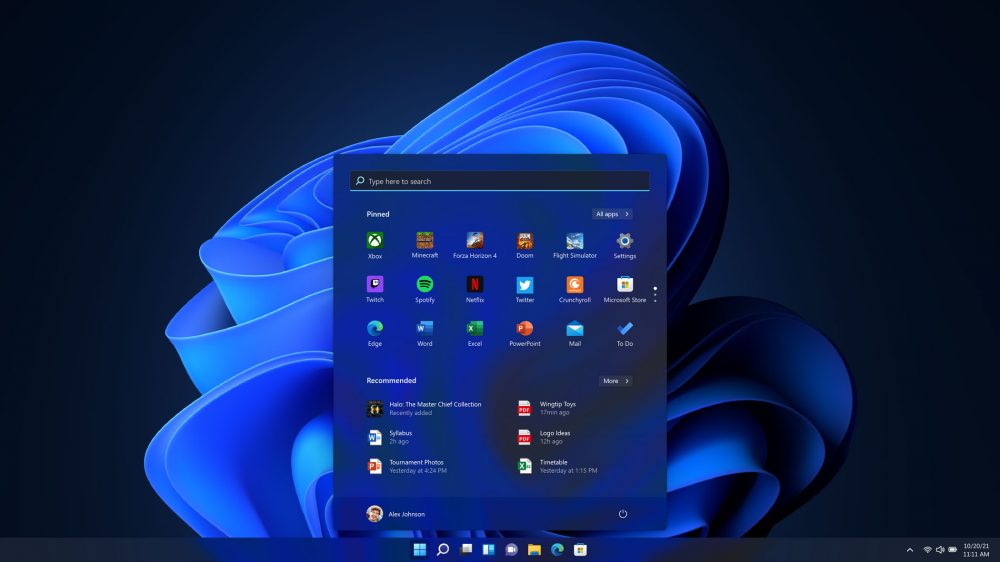
It’s been five years since Windows 11 was released, making it both battle-hardened and proven. But it’s not standing still – Windows undergoes continual improvements large and small, including rolling changes to the desktop. In the last year or so alone, the Start menu has been revamped, there’s a new Share UI that lets you quickly share documents, photos, and other files to apps, cloud storage, and more via drag-and-drop, and File Explorer has been streamlined.
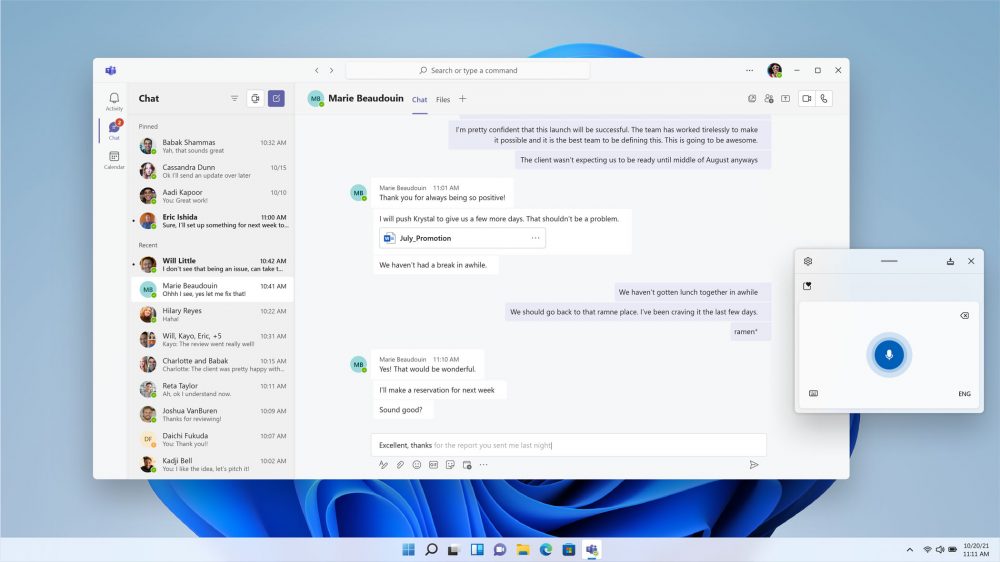
The desktop is also more tightly integrated with Microsoft’s Copilot AI, which pops up in apps like Paint and Notepad to help assist and boost your productivity. Windows 11 also comes with more security guardrails to keep you safe, supports modern hardware and promises longer battery life and reduced power usage on laptops. Perhaps crucially, it’s also now the only version of Windows officially supported by Microsoft.
Windows 11 Professional is the perfect choice for power users and those who want to use their PC in a work environment. Enhancements over Windows 11 Home include:
Comparing Windows 11 Pro vs Home
| Feature |
Home |
Pro |
| BitLocker Encryption |
× |
✓ |
| Remote Desktop |
× |
✓ |
| Hyper-V Virtualization |
× |
✓ |
| Group Policy Controls |
× |
✓ |
| Best for |
Basic Users |
Businesses & Power Users |
Best for
Pro
Businesses & power users
If you’re unsure which version is right for you, our Windows 11 Home vs Pro comparison guide explains the key differences
Make sure your PC or Mac can run Windows 11 before you purchase. Key considerations are that your PC supports TPM (Trusted Platform Module) 2.0 or later and that the processor is supported.
Includes a 1-PC non-transferable license.
Review by Nick Peers.